Linux Agent - install and setup
CertIntel also publishes a Linux build of the Agent: a static service/CLI binary for amd64 and arm64. It covers the same certificate lifecycle work as the Windows Agent - TLS monitoring, filesystem certificate monitoring, and ACME workflows with the embedded client - minus the pieces that only make sense on Windows (the desktop app, Windows certificate stores, IIS/Windows service integration). Day-to-day management uses the CLI or the full-screen terminal interface.
Requirements
- A systemd-based Linux distribution, x86_64/amd64 or aarch64/arm64.
- Root access for installation and for every CLI command (the service's
control socket admits only root and the service account, so prefix commands
with
sudo). curl,sed,awk,sha256sum,systemctland a few other standard tools. The installer lists anything missing and offers to install it withapt,dnf,yumorzypper.- Outbound HTTPS to your CertIntel API and the selected ACME certificate authority, and to the management interface of any appliance a workflow deploys to. No inbound port is needed: ACME names are validated with Delegated DNS-01.
The service runs as a dedicated, locked, unprivileged certintel-agent user
under a hardened systemd unit. Default locations:
| Item | Path |
|---|---|
| CLI/service binary | /usr/bin/certintel |
| systemd unit (installer script) | /usr/lib/systemd/system/certintel-agent.service, mode 0644, like the packages |
| systemd unit (deb/rpm package) | /usr/lib/systemd/system/certintel-agent.service |
| private state (config, credentials, ACME state, certificates) | /var/lib/certintel-agent |
| control socket | /run/certintel-agent/control.sock |
The command is certintel; the service, its account, unit, state directory
and socket keep the certintel-agent name.
The installer creates the certintel-agent account itself and refuses to
proceed if an account with that name already exists but does not match
(for example a different home directory, a login shell, or an unlocked
password). Remove or correct such an account first.
Install
On the dashboard's Install Tokens page, click Install commands (or
Show) on your organization's token row, then Install on Linux at the
top of the token page: it jumps to the Install on Linux (systemd) section
with the generated command. The list itself shows only the token's prefix.
While no agent is enrolled, the Agents page offers Install on Linux,
which opens that section directly. For a single machine installed by
hand, mint a one-time install token there or on the Agents page instead:
shown once with the same command,
consumed by that one enrollment, expiring on its own; see
Install tokens & enrollment.
The command downloads the
CertIntel bootstrap from https://certin.tel/install.sh, which reads the
release record from two independent sources (assets.certin.tel and
api.certin.tel), refuses to continue if they disagree or have expired,
downloads the versioned install-linux.sh, checks its SHA-256, and runs it:
Options chosen on the token page are appended after -s --:
| Option | Flag | Environment variable |
|---|---|---|
| Silent | --non-interactive |
CI_NONINTERACTIVE=1 |
| Reset existing data | --reset-existing-data |
CI_RESET_EXISTING_DATA=1 |
API base (the dashboard adds it whenever the deployment's agent address is not https://api.certin.tel). A stray line break after it, usually left by a command copied from Windows, is removed with a note; a space or any other control character is refused |
--api-base https://... |
CI_API_BASE |
| Reconnect with an existing agent key instead of enrolling | --api-key cik_... |
CI_API_KEY |
Agent settings under Advanced, applied with certintel config set once the Agent is installed. Keys: update-check, update-auto-install, update-requests (Agent 1.17.0+), update-check-interval-hours, monitor-interval-hours, managed-checks, managed-check-interval-minutes, renewal-check-interval-minutes, assignment-auto-apply; values on/off or a whole number |
--agent-setting key=value (repeatable) |
CI_AGENT_SETTINGS (space-separated, used when no flag is given) |
Run interactively with no credential and the installer prompts
CertIntel install token (cit_) or API key (cik_): without echo; it accepts
either. Never pass a token on the command line in shared systems; the
environment-variable form keeps it out of the process list. The installer
unsets the variables as soon as it reads them.
The versioned installer then:
- verifies the binary for your architecture against the release record (URL, exact size, SHA-256) and checks that the downloaded binary reports the expected version;
- creates the service account and writes the hardened unit;
- enables and starts the service and waits for it to become active;
- enrolls (install token) or registers (agent key) the device.
A failure prints CertIntel Agent installation failed during "<step>": ....
--non-interactive is also needed when there is no terminal and
dependencies must be installed; otherwise the script stops with Re-run from a
terminal or set CI_NONINTERACTIVE=1 to approve required dependencies.
Reset existing data disables the service, removes the package (if
installed from deb/rpm), binary, unit, state directory and service user, and
then installs fresh. It removes all
five agent units (certintel-agent.service, certintel-agent-hooks.socket,
certintel-agent-hooks@.service, certintel-agent-update.socket and
certintel-agent-update@.service) and their enablement links from both
/etc/systemd/system and /usr/lib/systemd/system, together with the hook
runner's and update helper's state and sockets. Your scripts in /etc/certintel/hooks.d are
kept. Interactive runs ask you to type REMOVE. Before the
cleanup the bootstrap starts the service and runs certintel unregister so the platform retires the old
device key; if that request is not confirmed it prints a warning and
continues, in which case disable or delete the old key on the Agents page
yourself.
Linux release binaries are authenticated by the signed release records and hashes; they do not carry an X.509 code signature. See the download trust notes.
The installer stages the downloaded binary under
/var/lib/certintel-agent-installer (root-owned, mode 0700, removed on
exit) rather than /run, which many distributions mount
noexec. A binary that cannot be executed from there is reported with the
path and the likely noexec cause.
Upgrade
Re-run the same install command on a connected host. The installer detects
the saved credential, replaces only the binary and unit, restarts the service
and prints Existing CertIntel connection retained. Configuration,
credentials, ACME state and certificates in /var/lib/certintel-agent are
untouched. Or use the built-in update commands.
certintel version prints the installed version; certintel --version and
certintel -v do the same.
Removing the Agent
There is no uninstall script. Stop and disable the unit, then remove the
binary, unit, /var/lib/certintel-agent, /run/certintel-agent and the
service user yourself. --reset-existing-data always reinstalls after the
cleanup, and cancelling at its REMOVE prompt removes nothing, so it is not a
way to uninstall. Removing the deb/rpm package deliberately keeps
the service user, credentials and certificates in /var/lib/certintel-agent.
Revoke the device's key on the CertIntel Agents page when retiring it.
After installation
certintel status prints a short summary: the platform connection and when the
Agent last reported, reports waiting, an available update, the configuration
lock and running jobs, then one row per certificate - problems first - with its
state, expiry and next renewal or retry, and the error, the revocation and the
next step under it. certintel certificates list prints the certificate rows.
Add --json for every field.
The Platform line's (every hour) is the inventory report. The
Dashboard line is the other one: when the Agent last checked for dashboard
proposals and when it checks next (about every 5 minutes; every 30 minutes
with Agent 1.13.0+, which hears of a new proposal within about a minute), how many
proposals await approval, and whether CertIntel has the current templates and
hook states (CertIntel has the current templates and hook states, or the
error and certintel assignments refresh sends them again). A certificate
whose installation keeps failing reads Issued, not installed, attempt N
with install retry … (or install retry due now) and is listed with the
ones that need attention; --json has it under certificates[].deployment.
A certificate with a queued or running job shows the job instead of its retry
time (issue requested …, running), and a due renewal reads renewal due
now.
After install-token enrollment, reporting stays rejected until an
administrator approves the new device on the CertIntel Agents page - see
Install tokens & enrollment. diagnostics shows the
pending-approval response until then. Once approved, the service sends a
short heartbeat (computer name, version, OS and architecture) at start,
the moment it notices the approval, then about every minute for 15 minutes,
and about hourly after that, so the device shows as
online on the Agents page even before it has monitors or certificate
work to report.
certintel help lists every command. certintel COMMAND --help (or -h,
or certintel help COMMAND) prints only that command's usage and runs
nothing, for example certintel certificates issue --help; for
certificates issue, renew, force-renew and deployments retry it is
the whole usage: what the command does, the ID, how the job is followed,
every option and the exit codes.
A command that queues a job prints the job's ID and returns at once.
sudo certintel jobs list lists the jobs the Agent keeps (its newest 128),
newest first: job ID, what it does, certificate, phase and when (--json:
the whole jobs). With --wait, certificates issue, renew,
force-renew, revoke and discover and deployments retry follow the
job instead: they print its progress as it happens and its result, and exit
0 when it completed, 4 when it failed, 5 when the Agent no longer knows the
job and 6 when they stopped waiting before it finished.
--wait-timeout DURATION (for example 10m, default 30m) bounds the
wait; the timeout and Ctrl-C stop the waiting, not the job, which keeps
running (follow it with certintel jobs get ID).
certintel
workflows list
lists the saved workflows - ID, template, number of steps
and the certificates that use each - and certintel deployments list lists
only file deployment targets; a certificate that a workflow installs, such
as one from Get a certificate for a server, is listed by workflows
list.
Get a certificate from the dashboard
For a server that runs NGINX, Apache httpd, HAProxy or Tomcat, the quickest path is Get a certificate for a server on the dashboard's Overview. It shows the steps in order; on the server you only run the commands it gives you. A new installation of the Agent applies the proposals of its organization by itself, so there is nothing to approve on the server; where that is switched off, a local administrator approves the proposal (step 6).
-
Install. Step 1 Connect the server links to Install on Linux, which opens the token page with the Linux command first; run it as root. The installer ends with:
-
Approve the server under 2 Approve it (one click; the Agents page asks for confirmation), and wait for 3 Wait for its first report: usually within 2 minutes of approval. The Agent notices the approval within seconds: while it waits it asks every 10 to 15 seconds for 15 minutes after the wait or the service starts, then every minute for the rest of the first hour. While a server approved in the last half hour has not reported, the page checks again by itself every 15 seconds. Waiting longer than that?
sudo systemctl restart
   certintel-agent
makes it report at once. Approve on this page returns to it and keeps following the server you approved: until that server has reported, step 4 says it continues with it once it has (Use a server that already reported instead is offered, not chosen). Opened without a server, while another server is still being set up, step 4 asks which reported server to use (Choose the server…) instead of picking one. - Choose what the server runs under What it runs (for example
NGINX (starter hook)). When the Agent reported a
detected server
that listens on port 443, the page starts from it (Detected on this
server: …): the server type and the names are filled in, and you can
change them. Otherwise nothing is preselected. (starter
hook) means a small script CertIntel installs as root to reload the
server after each new certificate; step 6 gives the one command that
installs it. Enter the Names (the field says to add a name's
Arecord now if it has none, before anything looks the name up), keep Let's Encrypt as the certificate authority, and click Continue. CertIntel creates the organization's ACME account if needed and one Delegated DNS-01 record per name. Continue does not need the starter hook yet; step 6 checks it. When the organization has ACME accounts but none for Let's Encrypt production, no certificate authority is preselected: choose one (Choose the certificate authority…). A refused Continue or Propose the certificate shows the page again with everything you entered or chose - server, type, names, settings, certificate authority, contact email, terms - and the reason in the step that was refused. - Add the DNS records. The page shows, for each name, the
_acme-challenge.<name>CNAMEto add at your DNS provider, with the record name in full and, as most DNS providers' forms take it, relative to the zone they add themselves: forweb.example.comin the zoneexample.com,_acme-challenge.web. CertIntel reads the zone from DNS and shows that short form only for a name at its zone or directly below it; for a name further below, or when it cannot read the zone, the page says to enter the part before your zone's name, as your DNS provider shows it. Each name must also point at the server with anA(IPv4) orAAAA(IPv6) record: add it before anything looks the name up, because a resolver that was told "no such name" keeps that answer for up to the zone's negative-caching time (often 5 to 60 minutes). Check DNS is optional, because step 6 checks the CNAME before it proposes: it checks the CNAME and looks up each name's address, and shows Not yet with the record to add (and how long a negative answer may stay cached) for a name without one. -
Prepare the server. Step 6 first says what the server must already have: a site for the names, for NGINX a server block with the names that listens on port 443 with
ssl. The Agent does not report the web server's configuration, so CertIntel cannot check this; the step gives a command to look (for NGINXsudo nginx -T 2>/dev/null | grep -E "listen|server_name", for Apachesudo apachectl -S). With Agent 1.14.0+ the step then says Nothing to install first: the Agent installs the starter hook itself when the proposal is approved on the server or applied by its auto-apply policy (a local administrator can turn that off withcertintel config set install-starter-hooks=off). With an earlier Agent it gives the command to run first; for NGINX:It writes
/etc/certintel/hooks.d/certintel-nginx.sh, which the Agent runs as root after each new certificate to test the configuration and reload NGINX. Step 6 shows the hook as the server last reported it: Installed, Not installed yet, or Cannot run (runsudo certintel hooks listto see why). The Agent reports the hook to CertIntel as soon as the command has written it, and the command says so: CertIntel now knows the hook is installed: the dashboard accepts proposals that use it. If the page still says Not installed yet,sudo certintel assignments refreshreports it at once (otherwise it follows with the Agent's next check of dashboard assignments, about every 5 minutes). The page reads the server's last report again by itself every 15 seconds, and Check again does so at once; neither sends anything to the server. Propose the certificate appears once the hook is reported installed. Step 6 also shows, before you propose, how to point the chosen server at the certificate (see step 7), with Copy buttons; you do that when the Agent has saved the files. Then click Propose the certificate. CertIntel checks the DNS record first: if it is not visible yet, nothing is proposed and the step says so. -
What happens on the server. The page after the proposal lists the rest in the order of the work. Every step that waits says what it waits for, the Agent's latest report or CertIntel's latest check with its age, and what to do.
- A server that applies proposals by itself has no approval step: the
page says Nothing to approve. The Agent fetches the proposal within 5
minutes (within a minute during its first 15 minutes after approval;
sudo certintel assignments refreshfetches it now), requests the certificate and installs it. The steps are 1 The agent gets the certificate, 2 Point NGINX at the certificate (or the server you chose) and 3 The agent confirms that the site serves it. -
A server that needs approval has 1 Approve the proposal on the server first, with the command, which names the assignment and its revision:
(
sudo certintel assignments show ASSIGNMENT-IDshows it first.) The other three steps follow as 2, 3 and 4. A local administrator can instead let the server apply this organization's proposals by itself withsudo certintel assignments policy --auto-apply on.
Renewal follows by itself and is not a step.
The agent gets the certificate. The Agent looks for the DNS record every 10 seconds for up to 5 minutes, then asks the certificate authority, which usually takes under a minute. If the request fails, for example because the DNS record is not visible, the step says so, with the time of the Agent's next try; the Agent tries again by itself and nothing is proposed again.
sudo certintel certificates issue <certificate-id>requests the certificate now. As soon as the Agent reports the certificate issued, it is listed under Certificates, with Issued, not installed yet (or Issued, installation failed, or Issued, waiting for its deployment window) until it is installed. - A server that applies proposals by itself has no approval step: the
page says Nothing to approve. The Agent fetches the proposal within 5
minutes (within a minute during its first 15 minutes after approval;
-
Point the server at the certificate (Point NGINX at the certificate on that page) as soon as the Agent has saved the files. The Agent saves the certificate in
/etc/certintel/certs/<certificate-id>/(the certificate id is the first name with dots as dashes, for examplewww-example-com):File Contents certificate-chain.pemCertificate with its chain certificate-key.pemPrivate key (unencrypted, owner-only; NGINX reads it as root) The page cannot know whether the server already serves the site over HTTPS, so for NGINX and Apache it offers both. NGINX does not serve this site over HTTPS yet (a new Debian or Ubuntu NGINX serves only port 80)? One paste writes a complete site to
/etc/nginx/sites-available/<certificate-id>-https(a name that never overwrites the site's own file) withlisten 443 ssl,server_name, the two certificate lines and the package's default page (root /var/www/htmlandindex index.html index.htm index.nginx-debian.html;, so a stock Debian or Ubuntu NGINX answers with its page rather than 403; put the site's ownrootorlocation / { proxy_pass …; }there), links it into/etc/nginx/sites-enabled/and runssudo nginx -t && sudo systemctl reload nginx. For Apache the paste runssudo a2enmod ssl, writes/etc/apache2/sites-available/<certificate-id>-https.conf(a<VirtualHost *:443>withServerName,SSLEngine onand the two certificate lines), enables it witha2ensiteand runssudo apachectl configtest && sudo systemctl restart apache2. Both pastes enable the site only once the Agent has saved the two certificate files: after writing the site they wait up to 5 minutes for them, so you can paste them right after proposing or approving. If the files do not come in that time, the site stays written but disabled, NGINX or Apache keeps running as before, and the paste prints the command to run once they are there.The site already has a server block? Add these lines to it, in place of its own
ssl_certificatelines (leave outlisten 443 ssl;if it has it):listen 443 ssl; ssl_certificate /etc/certintel/certs/www-example-com/certificate-chain.pem; ssl_certificate_key /etc/certintel/certs/www-example-com/certificate-key.pem;and, once the Agent has saved the two files, run
sudo nginx -t && sudo
systemctl reload nginx
. For Apache, addSSLEngine on,SSLCertificateFileandSSLCertificateKeyFileto the site's<VirtualHost *:443>and runsudo apachectl configtest && sudo systemctl reload apache2. For HAProxy see Linux service targets. -
The agent confirms that the site serves it: nothing to do. After installing, the Agent checks that the site serves the certificate; until the server uses the files that check fails, which is expected. The Agent checks a certificate's first installation on a server again every 30 seconds (its first 30 attempts, at least 15 minutes; then less often), so the page says Done within a minute or two of your change. The page reloads itself every 15 seconds until it says Done (for half an hour after the proposal or the Agent's latest report). If you do not want to wait, run
sudo certintel deployments retry <certificate-id>right after your change. Meanwhile the page says Issued; waiting for the site to serve it, with the Agent's error and that command, and what to do for that error: the name has no address in DNS (step 7 does not help: add theAorAAAArecord; when CertIntel's own lookup already finds the name, the server's DNS resolver still holds the "no such name" answer it got before the record existed, for up to the zone's negative-caching time, so wait), the connection was refused (nothing listens on the port: do step 7 and reload), no answer (a firewall may drop the port, or the name points at another computer), the port answers but not with TLS for the name (put the lines in the server block for this name, withlisten 443 ssl;, and reload) or the site serves another certificate (the server still uses other files: do step 7 and reload). The assignment stays Applying meanwhile and becomes Applied.
From then on the Agent renews, installs and reloads by itself. See
Linux service targets, and
Tomcat for a Tomcat server, whose one-time
server.xml lines the page shows in place of the NGINX lines.
Connect later or replace a credential
To connect later or replace a credential:
sudo certintel enroll --api-base https://api.certin.tel     # install token
sudo certintel register --api-base https://api.certin.tel   # agent API key
sudo certintel unregister
Both prompt without echo; add --stdin to pass the secret from a protected
automation source. Secrets are never accepted as command-line arguments. Use
the agent address of your deployment for --api-base (the one the Install
Tokens page puts in its commands).
registertakes an agent key only. An integration API key from the API Keys page is refused, because the platform refuses it for agent work: this is an integration API key, not an agent key, and the platform refuses it for agent work; create an install token on the Install Tokens page of the CertIntel dashboard and connect this computer with certintel enroll --api-base URL (or paste an agent key). An agent already connected with an integration key keeps its cloud work paused and says why, once, instead of reconnecting every 15 minutes.- An enrollment that failed without creating anything - a wrong, used or
expired token, a refused request, a name that does not resolve, a
connection or TLS failure - does not block the next attempt; the failure names the cause (for example the platform's own
refusal text or an untrusted TLS certificate). Only when the platform may
have created a key (the request was sent and no definite answer came back)
is the next attempt blocked; the message then says to disable or delete the
pending agent with this computer's name on the Agents page, run
sudo certintel unregisterand enroll again, with a new token if a one-time token was used.
Through a proxy
When the server reaches the internet only through an HTTP proxy, give the
Agent the standard proxy variables. It then sends its HTTPS connections to
CertIntel, to the ACME CA, to the delegated DNS-01 API, for update checks and
for CRL downloads through the proxy named in HTTPS_PROXY; NO_PROXY lists the
hosts it reaches directly (comma-separated host names, domains such as
.example.internal, IP addresses or ranges). The lower-case forms
https_proxy and no_proxy work too. The service does not see your shell's
variables, so add them to the service with a drop-in:
[Service]
Environment=HTTPS_PROXY=http://proxy.example.com:3128
Environment=NO_PROXY=localhost,.example.internal
Then restart the service with sudo systemctl restart certintel-agent. For a
command you run yourself, pass the variable to that command, for example
sudo env HTTPS_PROXY=http://proxy.example.com:3128 certintel enroll --api-base https://api.certin.tel.
What does not go through the proxy: DNS lookups (the Agent still needs a
working resolver, also for the DNS-01 propagation check), and connections to
your own servers that the Agent checks or deploys to, such as TLS endpoint
checks, appliances and Kubernetes clusters. A self-update is downloaded and
installed by a separate helper unit, certintel-agent-update@.service, which
does not get the drop-in above.
This was verified with an unauthenticated Squid proxy as the server's only way out (DNS allowed): enrolment, approval, heartbeats, dashboard assignments and a Let's Encrypt staging order through a DNS delegation all went through it. A proxy that needs a password, a proxy that inspects TLS, and updating through a proxy were not tested.
Terminal interface (certintel tui)
The terminal interface is the Linux counterpart of the Windows desktop app.
It talks only to the local service, fits an 80x24 terminal, needs no mouse,
and auto-refreshes every five seconds (press p to pause, r to refresh).
Seven screens are reachable with 1–7 or the arrow keys; ? shows the help
for the current screen; q quits; esc closes a dialog. Every destructive
action asks y/n first. The same action uses the same key on every screen
that offers it: a add, e edit, d delete, space enable/disable, s set
a secret or password, S scan now, t test, R run again, enter open, and
E/K/X connect with an install token or API key and disconnect.
| Screen | What you can do |
|---|---|
| 1 Overview | Connection state, version, schedules, update state, the configuration lock (a banner while it is on). t Test connection, S Scan and Report, E connect with an install token, K connect with an API key, X disconnect, u check for updates. |
| 2 Workflows | Certificates with phase, expiry, auto-renew and next renewal. a new certificate (guided wizard), T new workflow from a bundled template, D detect servers and pre-fill a new certificate (see Server detection), e edit the certificate, w edit (or convert) its workflow, c toggle the subject common name preference, enter details, S post-renewal scripts, i Issue / replace, n scheduled renewal check, f Renew now, C check the CA's renewal window (ARI), v Revoke (ACME only), R Install again, space toggle Auto-renew, d delete the certificate lifecycle. tab switches to the workflow definitions pane: enter steps and last run, e edit, s set a workflow secret, V validate, P preflight, W set the workflow's deployment window, d remove an unused workflow. The certificate detail shows the next renewal with its basis (ARI or lifetime), the CA's renewal window and next check, and a renewed certificate waiting for a deployment window. |
| 3 Agent Monitors | Panes for TLS probes, certificate files, CRL distribution points (see CRL monitoring) and the discovered inventory: tab switches pane, a add, e edit, d delete, space enable/disable, s set the keystore password of a PFX/P12/JKS monitor. m toggles Check internal endpoints assigned by CertIntel, c toggles the post-install re-check, R runs the managed check now, S scans now. |
| 4 Activity | Latest 500 entries or retained history (h), o older page, d include debug entries, / search, l cycle level filter, enter details, x export visible rows to a file. |
| 5 Settings | Reporting organization, scan/managed/renewal/update intervals, log retention, update checks, post-install re-check, renewal windows, DNS delegations (add, test, replace secret), ACME accounts and EAB secrets, connect/disconnect, the Configuration lock, the Agent default deployment window, Report failed step output, Report detected servers (see Server detection) and Platform credentials (appliances) - see Remote & appliance deployment: enter or e edit, space toggle an on/off row, a add, d delete, s set a secret, t test a delegation, E/K/X connect or disconnect. |
| 6 Jobs | Queued and recent operations; enter shows a job's events and errors, f follows it in the status bar. |
| 7 Assignments | Certificate workflows proposed for this Agent in the CertIntel dashboard, with the local auto-apply policy. enter details, y approve, n reject with a reason, A toggle auto-apply, R ask the platform now, H include history. Approving, rejecting and the policy need sudo. See dashboard-assigned workflows. |
The same decisions are available without the full-screen view: sudo certintel
assignments list, show ID, approve ID --revision N (the revision show
prints), reject ID --reason TEXT, refresh
and policy --auto-apply on|off.
Secrets (tokens, API keys, keystore passwords, delegation secrets, EAB keys)
are never typed inside the full-screen view: the form collects the other
fields, then the terminal is released and the same hidden prompt as
secret set reads the value.
Creating a certificate in the terminal interface
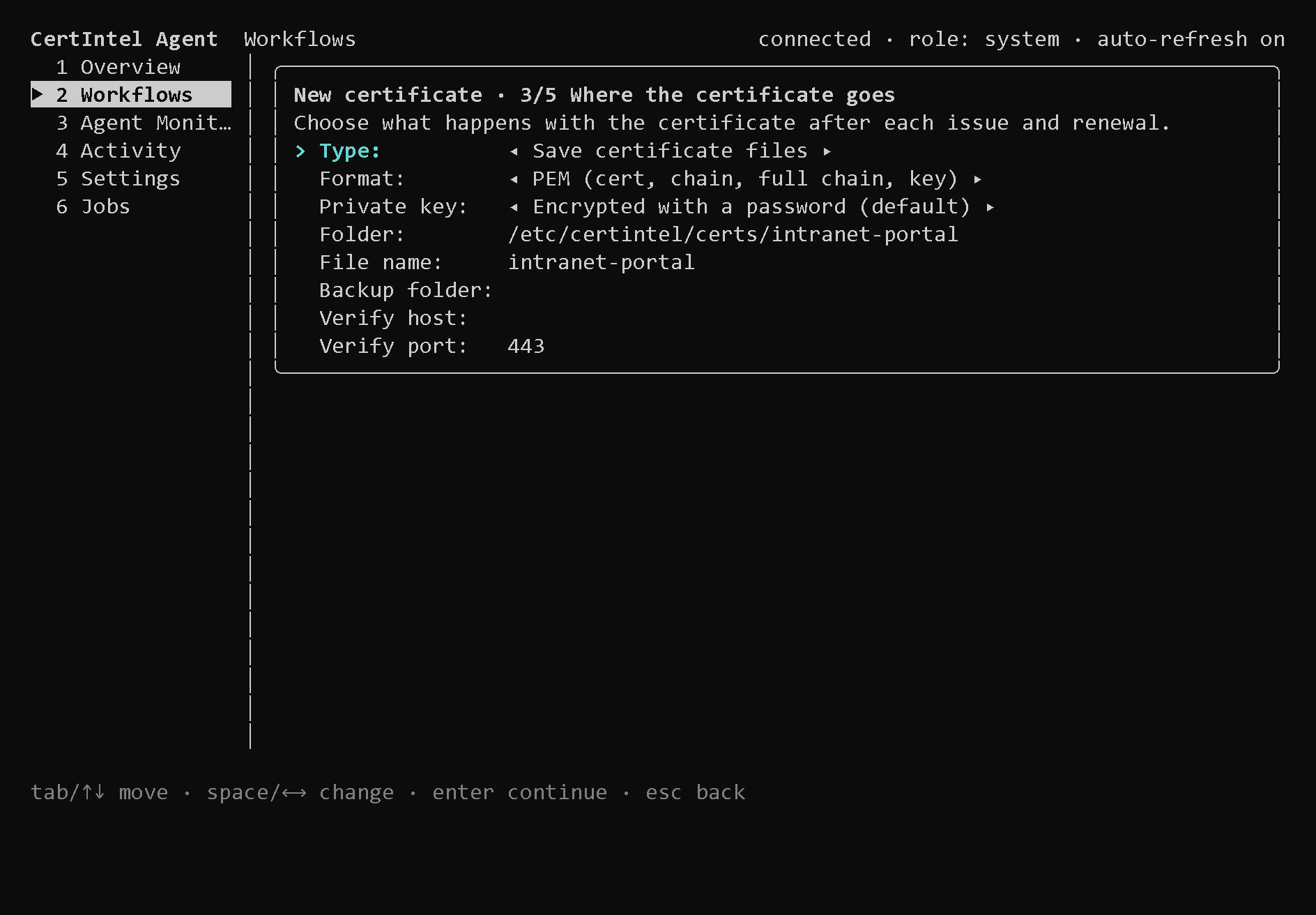
a on the Workflows screen opens a wizard that covers the
certificate names, the issuer (an existing or new ACME account, with EAB when
the CA needs it, or CertIntel Private CA when the platform offers it to
this Agent - see Private CA;
it is listed as a disabled CertIntel Private CA – not
allowed for this agent / – awaiting approval / – no active issuing CA
yet / – availability unknown entry, with the advice in the help line,
until it can be used),
DNS delegations (added inline), where the certificate
is saved and the scripts that run after each renewal, then shows a review
before anything changes. Guided types replace the Windows template catalog:
save files (PEM, CRT + KEY, PFX, P12, DER, P7B or JKS), NGINX, Apache httpd
and Tomcat, and HAProxy, Caddy, Traefik, LiteSpeed,
Postfix, Dovecot, PostgreSQL and MySQL, which install the files through a
root starter hook (see Linux service targets). ctrl+g
on the deployment page fills it in from the server configuration found on
this host (Server detection).
For NGINX and Apache httpd the private key starts as Unencrypted file,
owner-only access (mode 0600 for the certintel-agent
account, and the web server reads it as root), because neither reads a
password-protected key on an unattended reload without ssl_password_file or
SSLPassPhraseDialog; switching the type switches to that type's default.
Encrypted with a password stays available, and Save certificate files
starts encrypted.
A Private CA certificate can choose a Certificate profile (TLS server,
client, or both) and may name only IP addresses (see
Private CA). Output names are
checked as you type (letters, digits, ., - and _, no extension and no
Windows device name such as CON) with a suggested name. The Overview screen lists the setup
steps that remain.
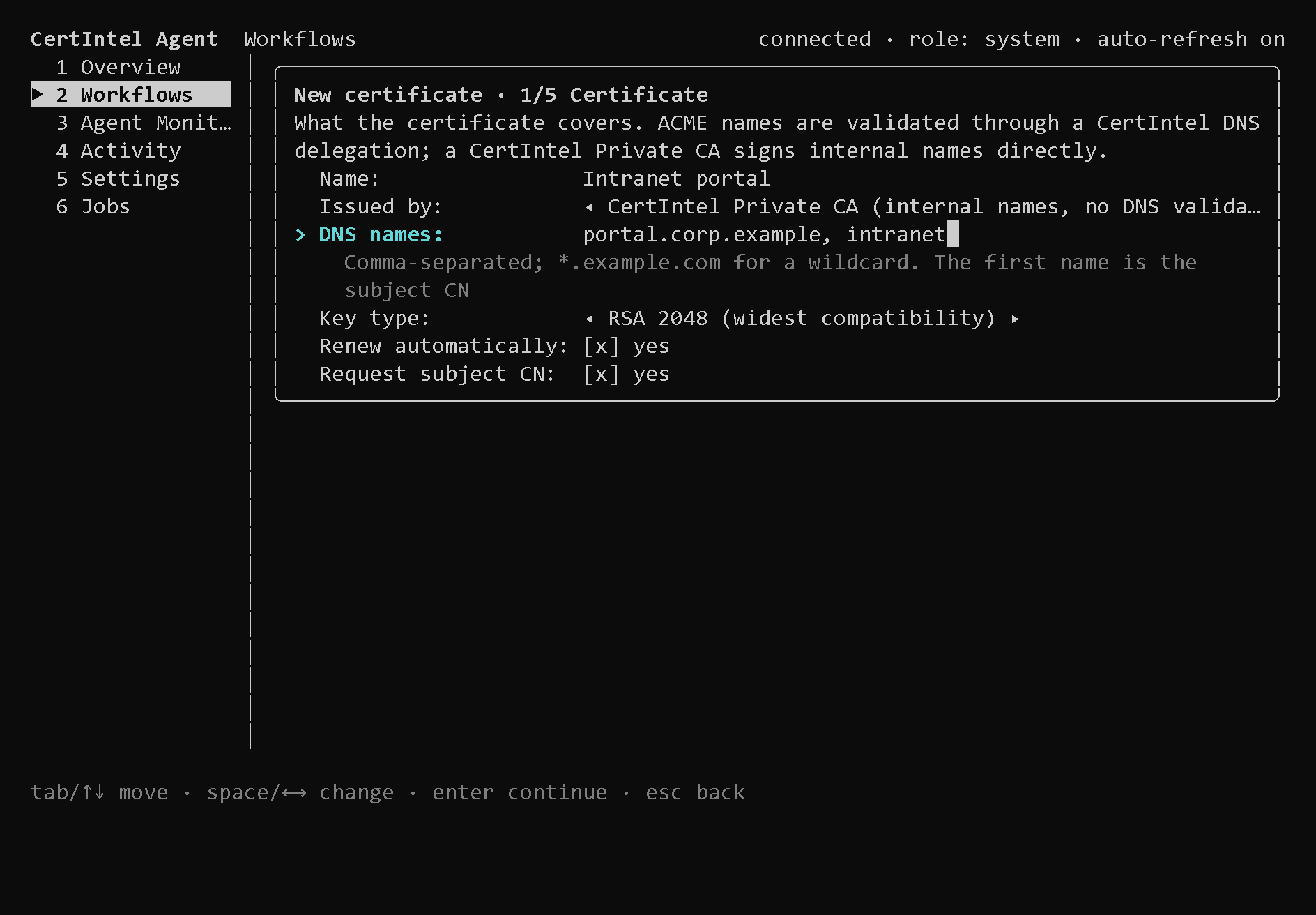
The Certificate page. Issued by is shown only when the platform offers a
Private CA to this Agent; with no ACME account yet the wizard starts on the
Private CA. Request subject CN is the omit_common_name setting.
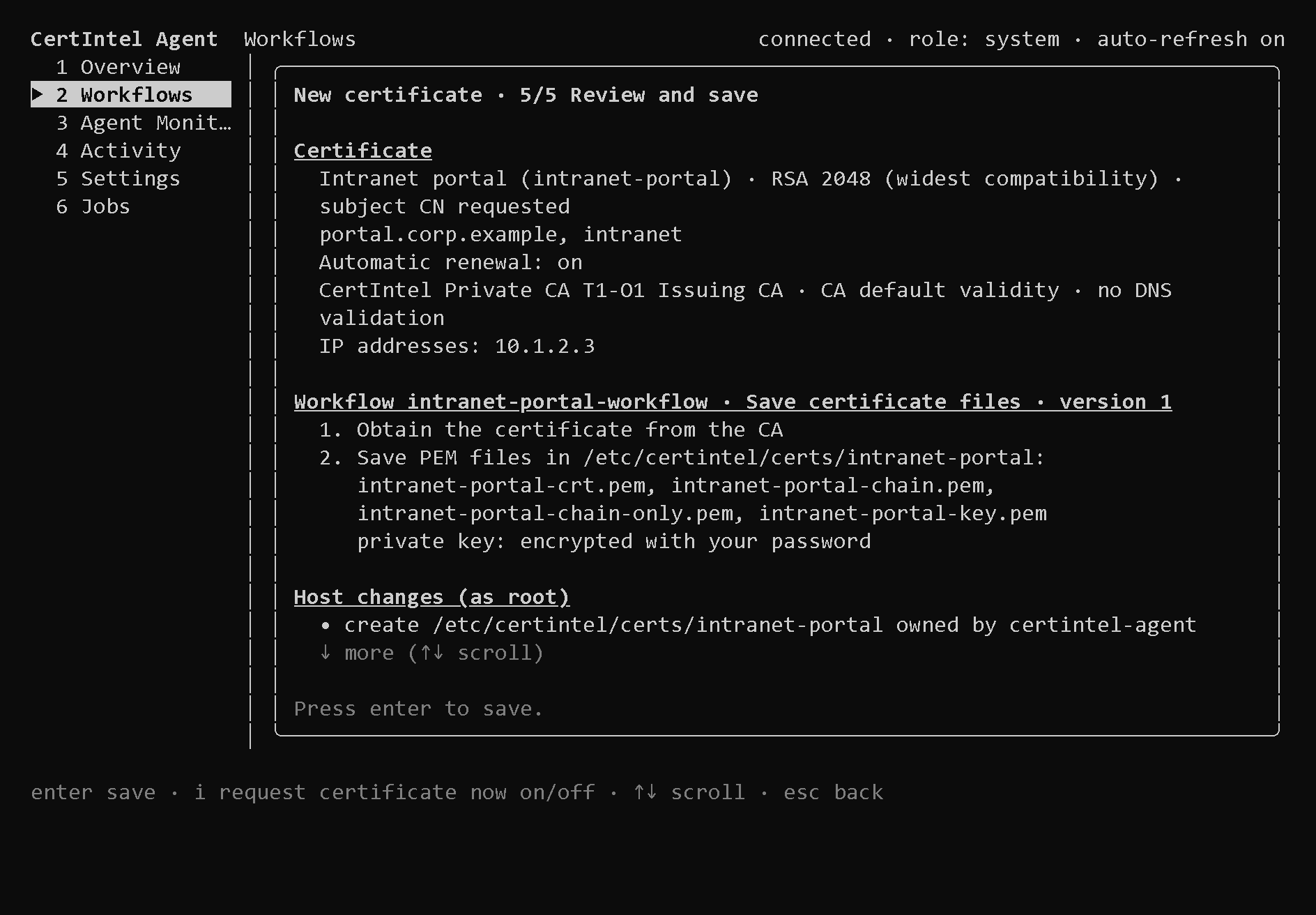
Nothing is saved or created until you press enter on the review page.
When you choose a destination folder, the terminal interface prepares it as
root: it creates the folder for the certintel-agent account (mode 0750),
allows it in the systemd drop-in
/etc/systemd/system/certintel-agent.service.d/50-certintel-tui-paths.conf
(ReadWritePaths) and restarts the service. System, home, temporary and other
software's configuration folders are refused.
Workflows from bundled templates
T on the Workflows screen opens New workflow from a
template, which lists every bundled template that runs on this system - for
example the appliance templates, which deploy to a
management API over HTTPS - and creates the certificate and the workflow from
it in one form: Certificate ID, DNS names (each needs a CertIntel DNS
delegation), ACME account and the template's own fields. A field marked
(this computer only) cannot be set by a dashboard assignment. A credential
field is either Local: set on this computer (the hidden prompt asks for it
after saving, as username:password or the API token) or a CertIntel platform
credential, which only a workflow created by a dashboard assignment can use.
A workflow created from a bundled template - by T, by a dashboard
assignment or by certintel workflows create - is not rewritten by w
or e. They open Edit fields instead: This
workflow comes from the bundled template … Only its fields are edited here;
its steps stay as they are. A workflow that names no bundled template and was
not created with the terminal editor opens read-only; change it with the
desktop app or certintel config.
You can still build the workflow JSON elsewhere and apply it with
config apply --file. Deployment plans, Windows stores, AD CS templates and
the desktop app's appearance settings are not applicable on Linux.
Post-renewal scripts (hooks)
The service runs unprivileged and cannot reload a web server or copy a file into a root-owned directory by itself. A separate root hook runner does that on its behalf, within a narrow boundary:
- The installers create
/etc/certintel/hooks.d(root-owned,0755) and enablecertintel-agent-hooks.socket, a systemd socket at/run/certintel-agent-hooks.sockthat startscertintel hooks serveas root on demand. - A workflow's
hook.runstep names a script in that directory. The runner executes only root-owned files there, so the Agent can request a script that root installed and nobody else can change, and nothing else. - The script receives the certificate details as
CERTINTEL_*environment variables (names, thumbprints, serial, validity, output directory, format and oneCERTINTEL_<ROLE>_FILEper file) together with verified private copies of the files the save step wrote. Its output goes tojournalctl -t certintel-agent-hooks; the step records the exit code and the tail of the output. When the script fails, the Agent sends the redacted end of that output to CertIntel with the failure report; see Reporting failed step output. Son the Workflows screen creates scripts from templates (custom, NGINX reload, Apache reload, Tomcat keystore install and restart, and the service starter hookscertintel-<kind>.sh) and opens them in$EDITOR.certintel hooks listshows which scripts the runner accepts;certintel hooks starter KIND [--write]prints or (as root) writes a service starter hook.
The inputs and outputs of hook.run are listed in
Modular workflows.
Configuration lock
The configuration lock is a root-owned file that, while it exists, makes the Agent refuse configuration changes proposed by the CertIntel platform. The only such changes are dashboard-assigned workflows; the platform cannot push scripts, hooks or other configuration to an Agent at all.
sudo certintel lock --reason "Change freeze until 2026-11-15"
sudo certintel lock status
sudo certintel unlock
The commands need root and exit with 2 without it (1 on another error).
Without root, certintel status --json shows the state as config_lock
(locked, since, by, reason, error). In the terminal interface,
started with sudo, the Configuration lock row on the Settings screen
turns it on (with an optional one-line reason) or off with enter; the
Overview shows a row for it and, while it is on, a banner.
While the lock is on:
- dashboard assignments are not applied: auto-apply is skipped,
yon the Assignments screen andcertintel assignments approveare refused (codelocked), and each waiting assignment is reported once per revision as awaiting approval with the reason Configuration lock is on; platform changes are blocked on this agent. Proposals that arrive during the lock wait for an administrator after it is turned off and are never auto-applied; - renewals, installations, monitors, reporting, local changes in the terminal
interface or with
config apply, and updates continue.
The file is /etc/certintel/config.lock, owned by root:root with mode
0644, in the root-owned /etc/certintel directory, and holds
{"schema":1,"locked_at":"…","locked_by":"…","reason":"…"}. The service runs
as the unprivileged certintel-agent account under ProtectSystem=strict,
so it cannot create or remove the file. It checks it about once a minute and
tells CertIntel within about 30 seconds after noticing a change, while
certintel status reads it each time you run it; the
dashboard then shows the Agent as Locked. A file that is damaged or
cannot be read counts as locked, with the error shown, so a broken lock
never silently opens up. Anyone with root on the machine can remove the lock;
it protects against the platform, not against local administrators.
The service must be able to read /etc/certintel: when it cannot (the folder
or the file was closed to other accounts, for example with chmod 700
/etc/certintel), it treats the lock as on, whether or not a lock file is
there. The Agent says so and how to fix it:
certintel status shows Config lock: treated as on: /etc/certintel/config.lock
cannot be read (permission denied); the folder /etc/certintel must be 0755
root:root and config.lock 0644 root:root (sudo chmod 755 /etc/certintel);
dashboard changes wait until then, certintel assignments approve and the
reports to CertIntel give the same reason, and sudo certintel lock status
and sudo certintel unlock, which read the file as root, add But the folder
/etc/certintel is 0700, so the CertIntel service cannot read
/etc/certintel/config.lock and treats the lock as on; … (lock status
--json: service_problem). Run sudo chmod 755 /etc/certintel.
Updates
Install updates from the CLI:
update check compares the installed version with the signed release record
and prints either Installed X is current (latest verified release Y) or
Installed X; verified release Y
is available. Run: sudo certintel update install. update install
downloads the release's pinned install-linux.sh, checks its SHA-256 against
the signed record, and runs it non-interactively; the existing connection is
kept. Schedule it with cron or a systemd timer if you want unattended
upgrades. Older versions are never offered; a problem release is always fixed
by a newer one.
Update checks
The service itself checks for verified updates, by default every 24 hours
(the updates settings: Check for agent updates, Update check
interval, 1-720 hours, on the terminal interface's Settings screen). It
verifies the signed release record for its architecture and shows the result
on the Overview screen: Update state reads update available: X when a
newer verified release exists, and Update policy shows check only,
checks disabled or auto-install enabled with the last and next check.
certintel status --json reports the same under update. Checking never
installs anything.
Automatic installation
From Agent 1.12.1 a Linux Agent can install verified updates by itself. It is off by default; turn it on per machine in one of these ways:
- when installing: add
--agent-setting update-auto-install=onto the install command (or pick it under Agent settings in the dashboard's install dialog); - later:
sudo certintel config set update-auto-install=on, or Install verified updates automatically on the terminal interface's Settings screen.
With it on, the service installs a newer verified release at its next update
check. An update asked for in the dashboard does not need it (Agent 1.17.0+):
see Update requests from the dashboard.
The work is done
by a root helper (certintel-agent-update.socket, starting
certintel-agent-update@.service). The helper verifies the signed release
itself, never installs an older version, replaces /usr/bin/certintel,
restarts the service, and restores the previous binary when the new one is not
running healthily within a minute.
Limits:
- An Agent on 1.11.0 or earlier cannot do this. Update it once with
sudo certintel update install. - An Agent installed from a deb or rpm package updates through
aptordnf, never through the helper. - The container image is updated by replacing the image.
- The helper replaces the Agent binary only. When release notes say the
service units changed, run
sudo certintel update installonce.
Update requests from the dashboard
Update now and Update all outdated in CertIntel (see
Windows Agent updates) reach a Linux
Agent with its next heartbeat. An Agent 1.17.0 or later installs the update
unless Allow update requests from CertIntel is turned off on the machine.
The setting is on by default and separate from
automatic installation, which a request does not
need. Change it with sudo certintel config set update-requests=off (or
on), with Allow update requests from CertIntel on the terminal
interface's Settings screen, or when installing with
--agent-setting update-requests=off. An Agent from 1.12.1 to 1.16.0
installs a requested update only with automatic installation turned on.
The same root helper does the work, and the limits above apply. Otherwise the Agent refuses the request and the dashboard shows Update refused:
- update requests are turned off on the device: the setting is off on an Agent 1.17.0 or later. Turn it on and request the update again, or install the update on the machine.
- automatic installation is off on the device; agents before 1.17.0 need it on for update requests: an Agent from 1.12.1 to 1.16.0 with automatic installation off. Turn it on and request the update again, or install the update on the machine.
- automatic installation is not available in this release: the Agent is 1.11.0 or earlier, or runs from the container image.
- installed by a package manager; update it with apt or dnf: a deb or rpm installation.
Upgrading to Agent 1.17.0
Before 1.17.0 an Agent installed an update asked for in the dashboard
only when automatic installation was on. From 1.17.0 it installs it
unless Allow update requests from CertIntel is turned off, also when
automatic installation is off. To keep the earlier behaviour, run
sudo certintel config set update-requests=off after the upgrade. Set it
back to on before going back to an older Agent: an Agent up to 1.16.0
does not start while its configuration holds this setting turned off.
To install on the machine, run sudo certintel update install. The
configuration lock does not block signed updates.
What's different from Windows
Linux does not run the WPF desktop app or the Windows-specific deployment
helpers - no IIS integration, no Windows certificate stores, no Windows
service restart action and no Microsoft service templates.
Supported Linux actions include TLS endpoint and file
monitoring, ACME issuance, certificate exports, local file/process actions,
systemd service actions, root post-renewal scripts
including the service starter hooks, and
deployment to appliances over their management
API. Server detection runs only as root: in the
terminal interface, with sudo certintel servers detect, and when the Agent
is installed or its package is updated; the sandboxed service never detects.
From Agent 1.14.0 the service asks the root hook runner to detect every 24
hours and when the dashboard asks with Check again.
Use the terminal interface or the CLI's
versioned configuration transaction (config get --json, validate --file,
config apply --file) for configuration; action platform constraints still
apply. Windows store verification/cleanup and AD CS store scans are
Windows-only.
Because the service runs as an unprivileged user, the destination directories
for exported certificates must be writable by certintel-agent (the terminal
interface prepares them for you), files it reads must be outside home folders,
which the service cannot see (a kubeconfig for the
Kubernetes TLS Secret template goes in
/etc/certintel/kubernetes, group certintel-agent, mode 0640), systemd
service actions work only for units that account may control, and anything that needs root goes through a
post-renewal script. Trusting a CertIntel
Private CA root on the machine is likewise an explicit root step:
sudo certintel private-ca trust CA-ID writes the anchor into the
distribution's CA bundle and runs its update command. The Agent
reads the Debian, RHEL, SUSE and Arch bundles without root and reports whether
each Private CA root is trusted, in certintel status, the terminal interface
and the CertIntel dashboard (see
Private CA).
Local secret protection and release trust
Linux secrets rely on restrictive filesystem ownership and permissions (the
state directory is mode 0700); there is no DPAPI equivalent. Protect service
state, backups and exported private keys, and grant the service account only
the paths and restart permissions required by its configured workflows.
Linux artifacts are bound to signed release metadata and hashes, but currently lack an X.509 certificate-backed binary signature. The Windows Authenticode guarantee does not apply to ELF binaries or deb/rpm packages. See the download trust notes.